


Need to convert a WebP image to PNG? You can do it in just a few minutes without installing any software. Whether you downloaded an image from a website or need a PNG file for editing, design, or uploading, an online image converter can make the process simple.
In this guide, you’ll learn how to convert WebP to PNG for free, which method to choose, and how to avoid common image conversion problems.
What Is a WebP Image?
WebP is an image format developed by Google. It helps websites load faster by reducing image file sizes while maintaining good visual quality.
However, some image editors, applications, and older software may not support WebP properly. PNG is often a useful alternative because it supports transparent backgrounds and is widely supported across devices and editing tools.
How to Convert WebP to PNG Online for Free
Follow these simple steps to convert your image.
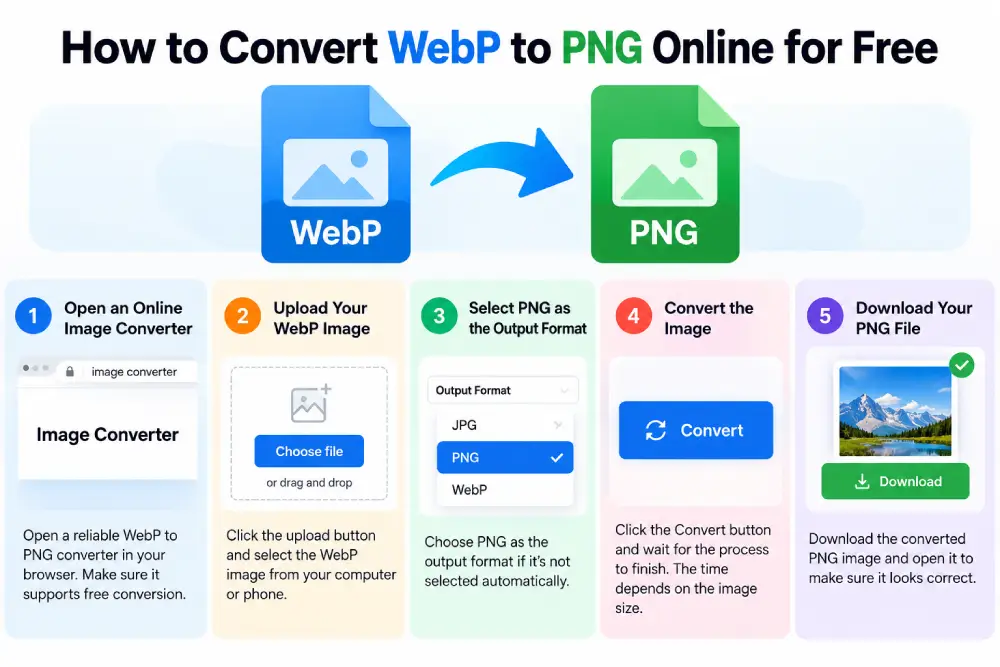
Step 1: Choose an Online Image Converter
Open a reliable WebP-to-PNG converter in your browser. Look for a tool that supports free conversion and clearly explains its file-size limits and privacy policy.
Step 2: Upload Your WebP Image
Click the upload button and select the WebP image from your computer or phone. Some tools also support dragging and dropping files into the upload area.
Step 3: Select PNG as the Output Format
Choose PNG as the output format if the converter doesn’t select it automatically.
Step 4: Convert the Image
Click the Convert button and wait for the process to finish. Conversion time depends on the image size and the tool you’re using.
Step 5: Download Your PNG File
Download the converted image and open it to make sure it looks correct. You can now use it in your design project, presentation, document, or supported application.
How to Convert WebP to PNG Without Losing Quality
If image quality matters, keep these points in mind:
- Use a converter that preserves the original image dimensions.
- Avoid unnecessary resizing during conversion.
- Choose a tool that exports PNG without adding a watermark.
- Check the final image for visual differences before using it.
PNG is a lossless image format, but converting a WebP image to PNG cannot restore detail that was already lost when the original WebP was created.
Can You Convert WebP to PNG on a Mobile Phone?
Yes. You can convert WebP images on Android or iPhone using a compatible online converter in your mobile browser.
Open the converter, select the image from your device, choose PNG, and download the result. The exact steps may vary depending on your browser and the converter.
If you regularly work with private or sensitive images, consider an offline conversion tool instead of uploading files to an online service.
WebP vs PNG: What’s the Difference?
| Feature | WebP | PNG |
|---|---|---|
| File size | Often smaller | Often larger |
| Transparency | Supported | Supported |
| Lossless compression | Supported | Supported |
| Website performance | Often useful for web images | Useful when PNG compatibility is needed |
| Editing compatibility | Depends on the software | Widely supported |
WebP is often a good choice for website performance, while PNG is useful when you need compatibility with particular editing tools or workflows.
Why Is Your WebP-to-PNG Conversion Not Working?
If your image won’t convert, try these solutions:
The image won’t upload: Check the file extension, file size, and whether the file opens correctly on your device.
The converter shows an error: Refresh the page or try another reputable converter.
The PNG file looks different: Check whether the tool resized the image or changed its transparency.
The downloaded file won’t open: Download it again and confirm that the conversion completed successfully.
Frequently Asked Questions
1. How can I convert WebP to PNG for free?
Use a compatible online image converter, upload your WebP file, select PNG, and download the converted image. Check whether the tool has free-use restrictions.
2. Does converting WebP to PNG reduce image quality?
A properly configured conversion can preserve the decoded image appearance. However, it cannot recover details lost in a previously compressed image.
3. Can I convert WebP to PNG without installing software?
Yes. An online converter can perform the conversion directly through a compatible web browser.
4. Does PNG support transparent backgrounds?
Yes. PNG supports transparency, although the result depends on whether the original image contains transparency and whether the converter preserves it.
5. Is it safe to use an online WebP-to-PNG converter?
It depends on the service. Check its privacy policy and avoid uploading confidential images to websites you don’t trust.
Final Thoughts
Converting WebP to PNG online is a straightforward way to make an image compatible with your preferred editing software or workflow. Upload your file to a reputable converter, select PNG, and download the result.

